

Print the Daily QuestScroll Prototype with Vistaprint
No printer at home? No worries. This digital scroll will show you how to order a Notepad of The Daily QuestScroll Prototype, a gamified fantasy To Do List where needs turn into NeedBars and tasks turn into Quests.
(Click here to read more about the Daily QuestScroll Prototype)
You can use a Print On Demand service like Vistaprint to order The Daily QuestScroll Prototype without the hassle of printing and cutting.
Note:
I’m not affiliated with Vistaprint. I just used to order my designs on there before I had a printer. The Daily QuestScroll Prototype is based on their DL (110 mm x 210 mm) notepad format but also works with similar sizes.
Chapter 1 – Download the Daily QuestScroll Prototype
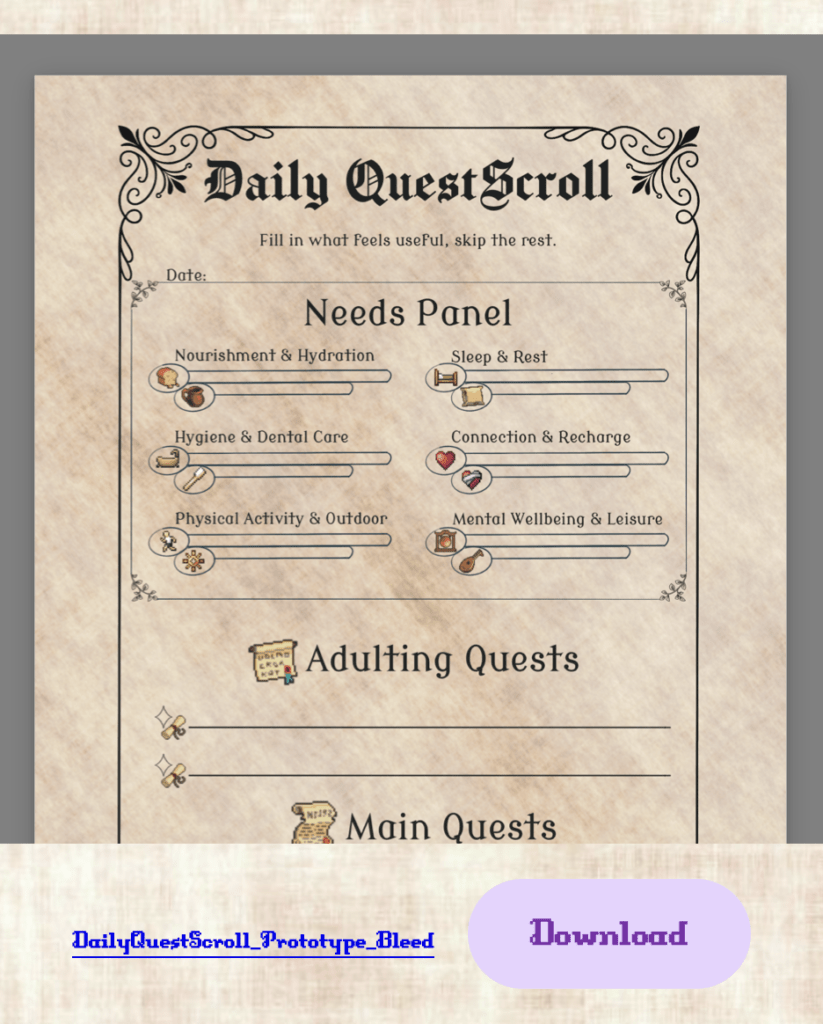
- Download the Daily QuestScroll Prototype for free Here.
Note:
You need the file with the following name:
DailyQuestScroll_Prototype_Bleed
Chapter 2 – Find the VistaPrint website
Vistaprint works with local vistaprint websites unless you live in the United States, Canada or Puerto Rico.
vistaprint.com
The vistaprint.com website ships to United States, Canada and Puerto Rico.
Local Vistaprint websites or other Destinations
Vistaprint has local websites for locations outside the United States, Canada and Puerto Rico.
You can find the list here: Link Local Vistaprint Website Overview
Chapter 3 – Upload the Daily QuestScroll Prototype
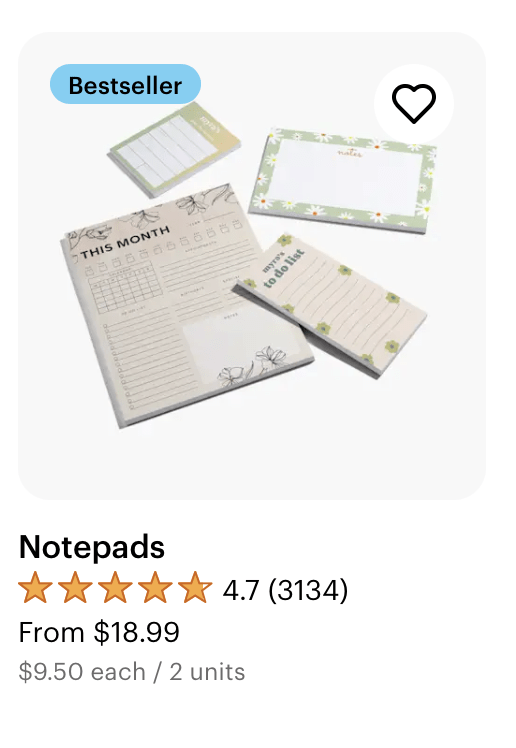
QuestTask 1: Find the Notepad
- Use the search bar to find the Notepads.

2. Select Notepads.
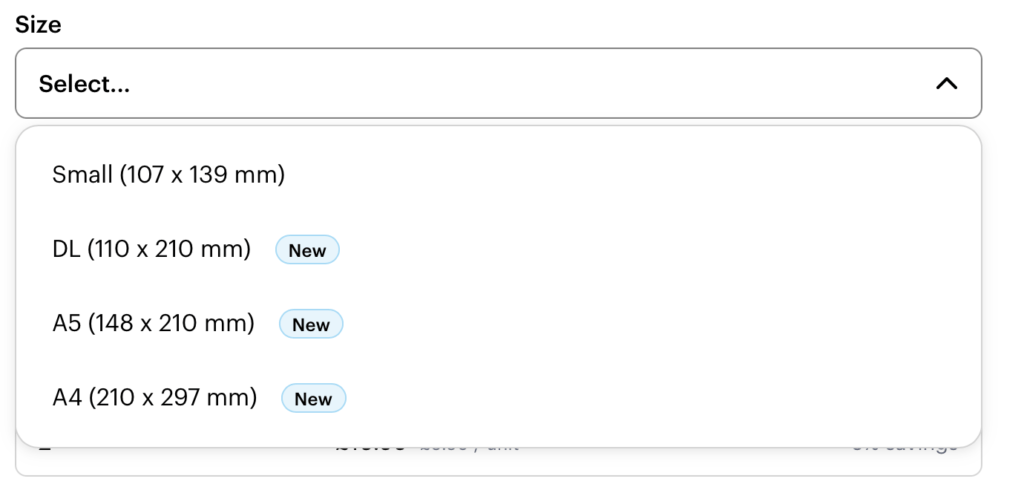
QuestTask 2: Select the Notepad Size
- Select DL (110 x 210 mm).
Notes:
- Size for vistaprint.com (3.8″ x 7.8″)
- Local websites:
- DIN lang (110 x 210 mm)
- DL (99 x 210 mm)
QuestTask 3: Select the Reverse Side & Amount

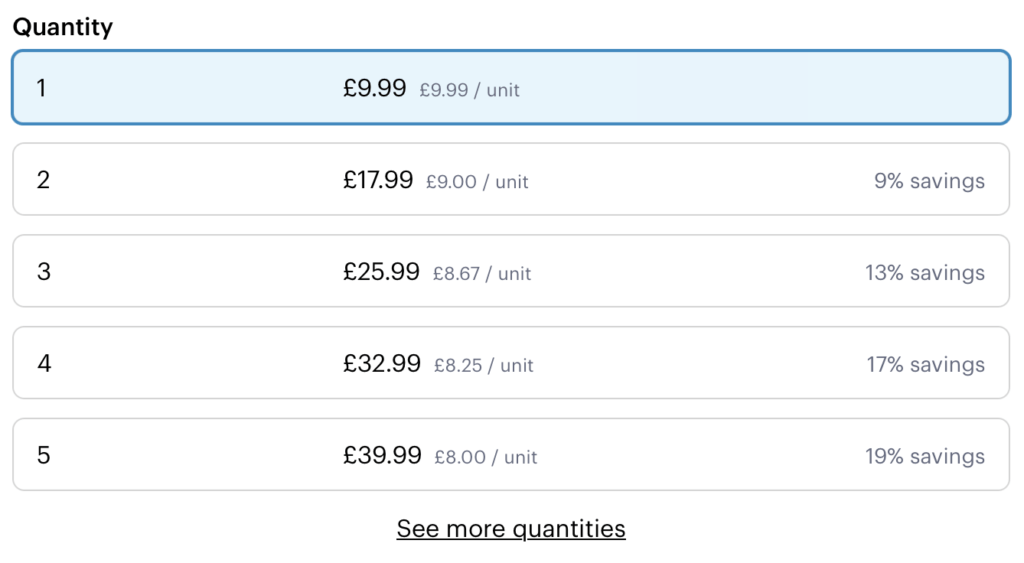
- Depending on your preferences, you can choose to have a Cardboard on the back or a Magnetic reverse side.
2. Select how many Notepads you want to order.
QuestTask 4: Upload the Daily QuestScroll Prototype
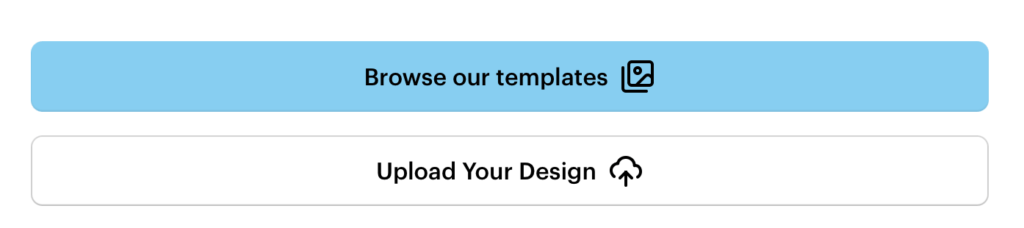
- Select “Upload Your Design”.
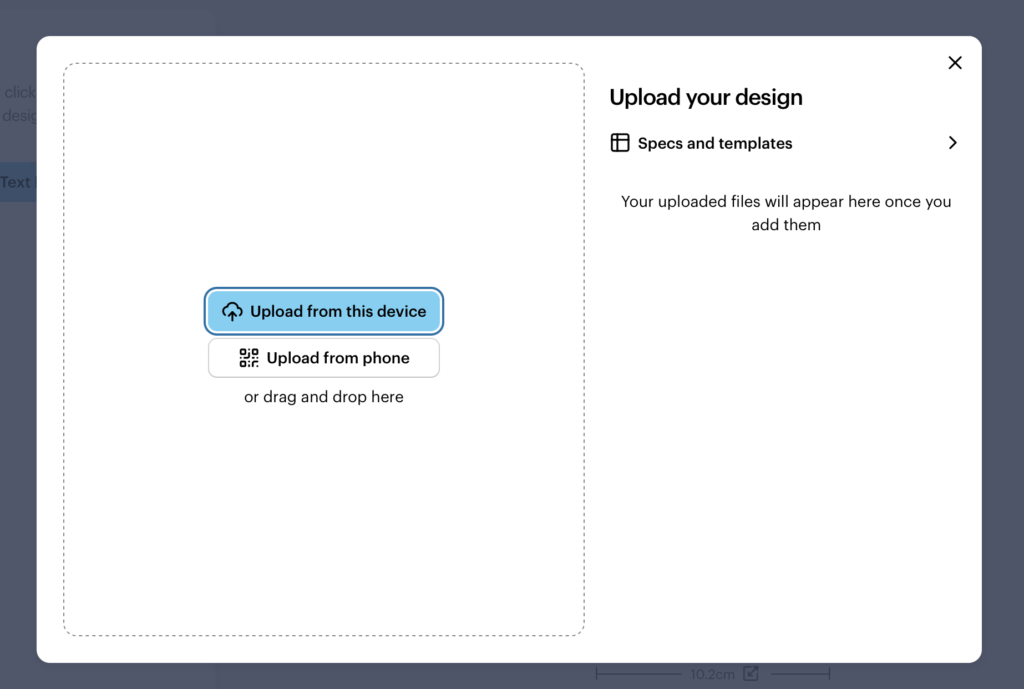
2. You can Upload the PDF from your computer to by scanning a QR code on your phone.
You need the DailyQuestScroll_Prototype_BleedOnly
Chapter 4 – Set up the Daily QuestScroll Prototype
QuestTask 1: Increase the Image Size
1. Click on the image
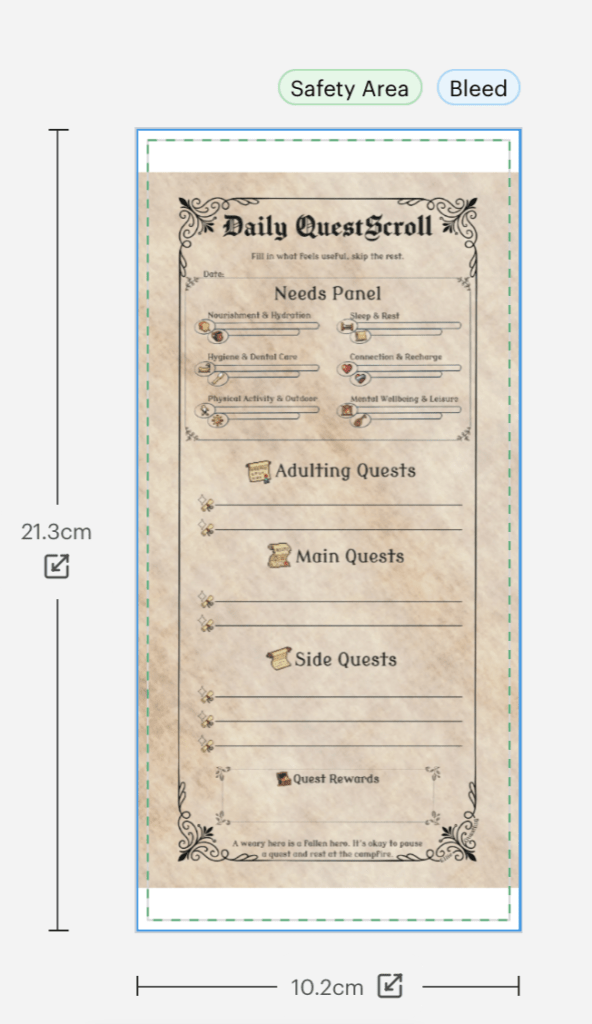
2. Drag a corner to increase the Image Size.
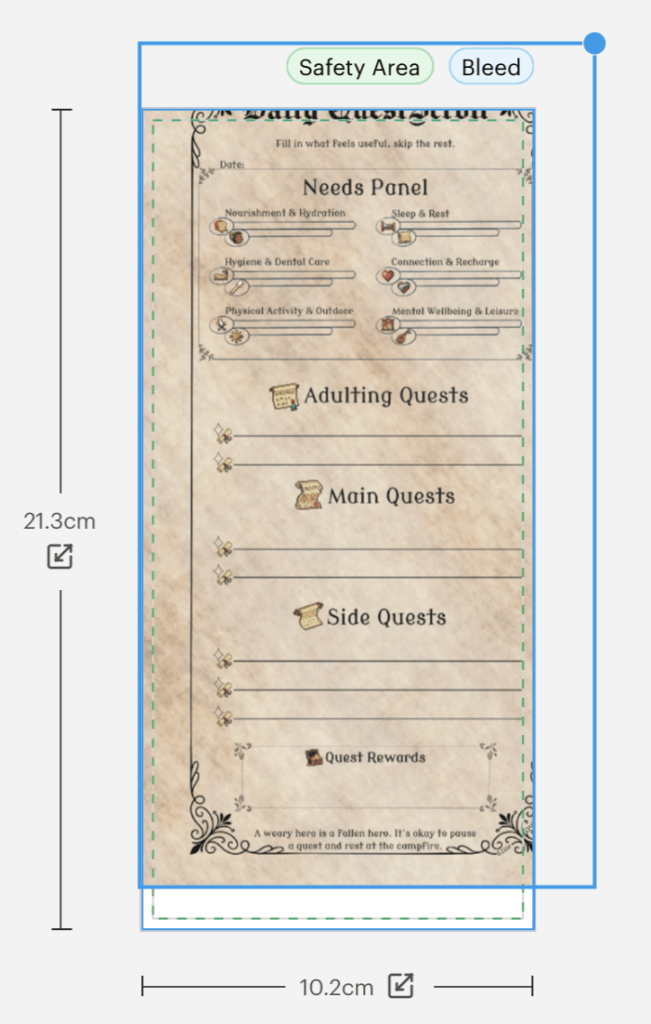
QuestTask 2: Set up Safety Area & Bleed
1. Click & Drag the image to move it.
2. Use the green guidelines in the editor to centre the Image.
(the green guidelines will form a cross when centred)
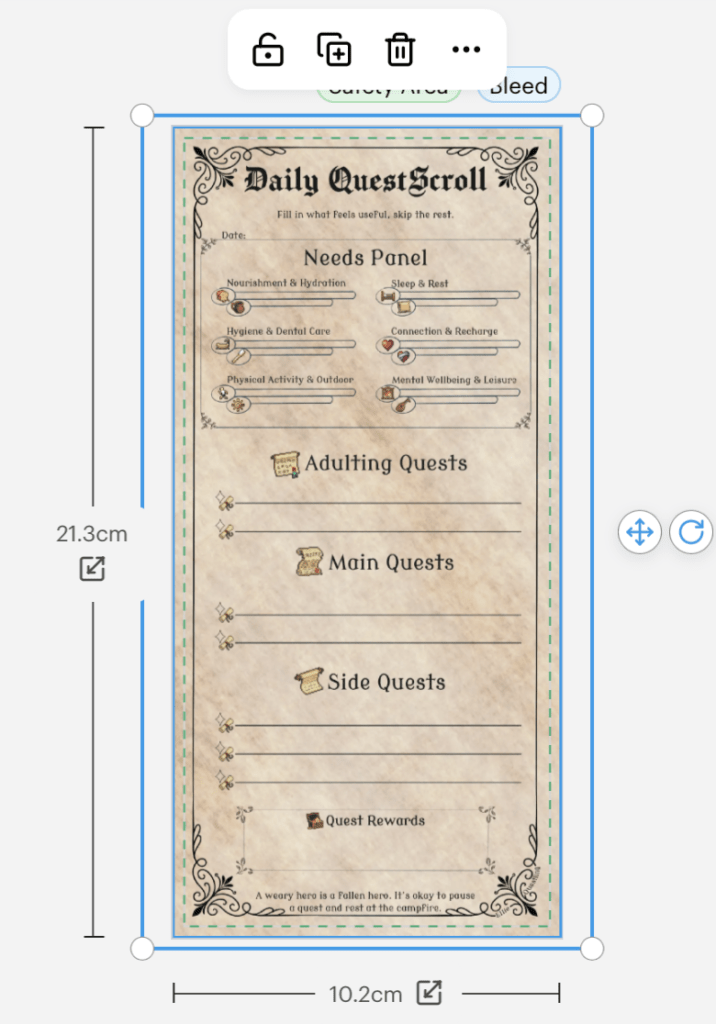
Important Notes:
- Make sure that the image is bigger than the blue Bleed line at the border.
- Make sure that all the text and visuals are within the green striped Safety Area line.
Chapter 5 – Preview & Review
You can click on Preview to see a preview of the notepad or click on Next to Review.

QuestTask 1: View the Preview (Optional)
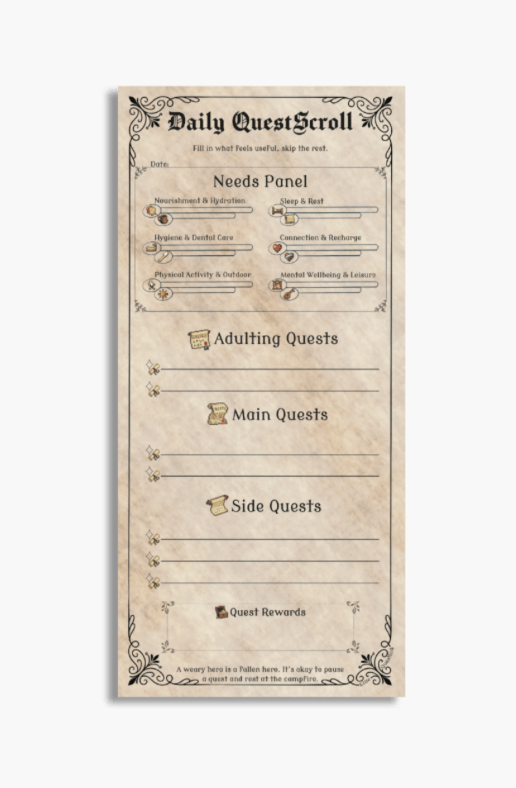
Clicking on Preview will generate a picture of how the Notepad will look.
QuestTask 2: Review (Essential)
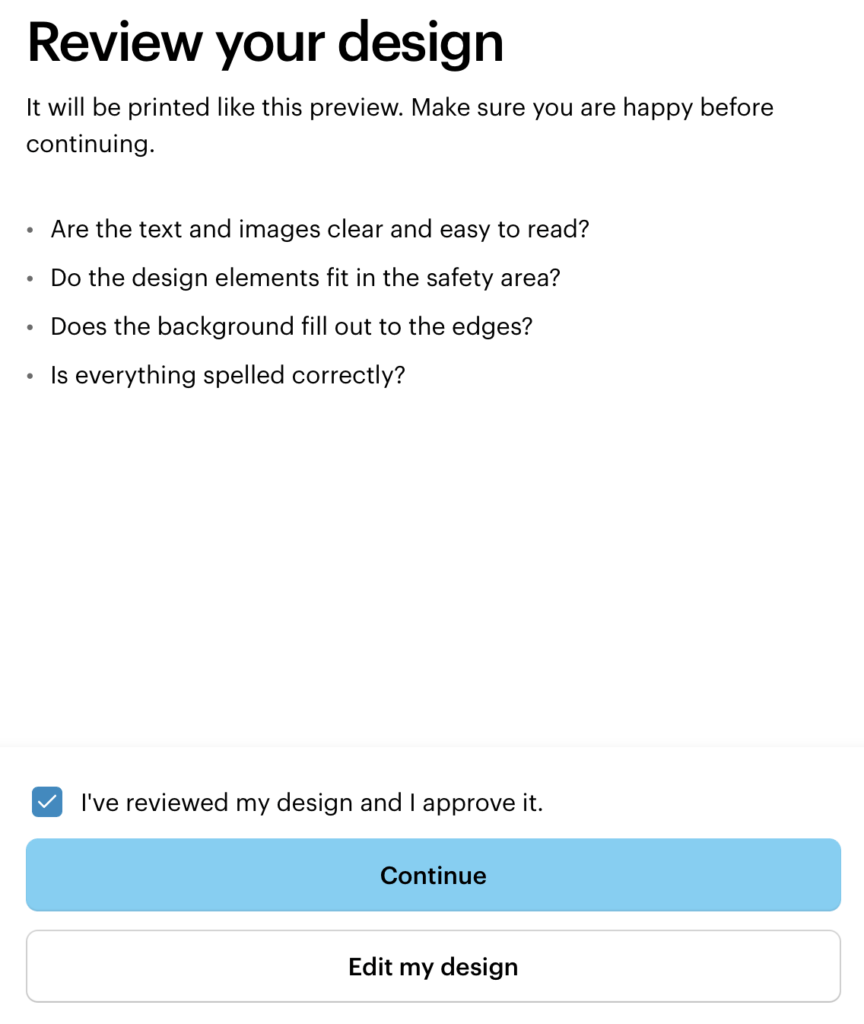
1. Make sure that your design is set up properly.
Checklist:
1.
2.
3.
The Image is bigger than the canvas to create bleed
The Text and Borders of the design stay within the Safety Area
The Design is centred.
2. Select the checkbox after reviewing the design.
3. Click on Continue.
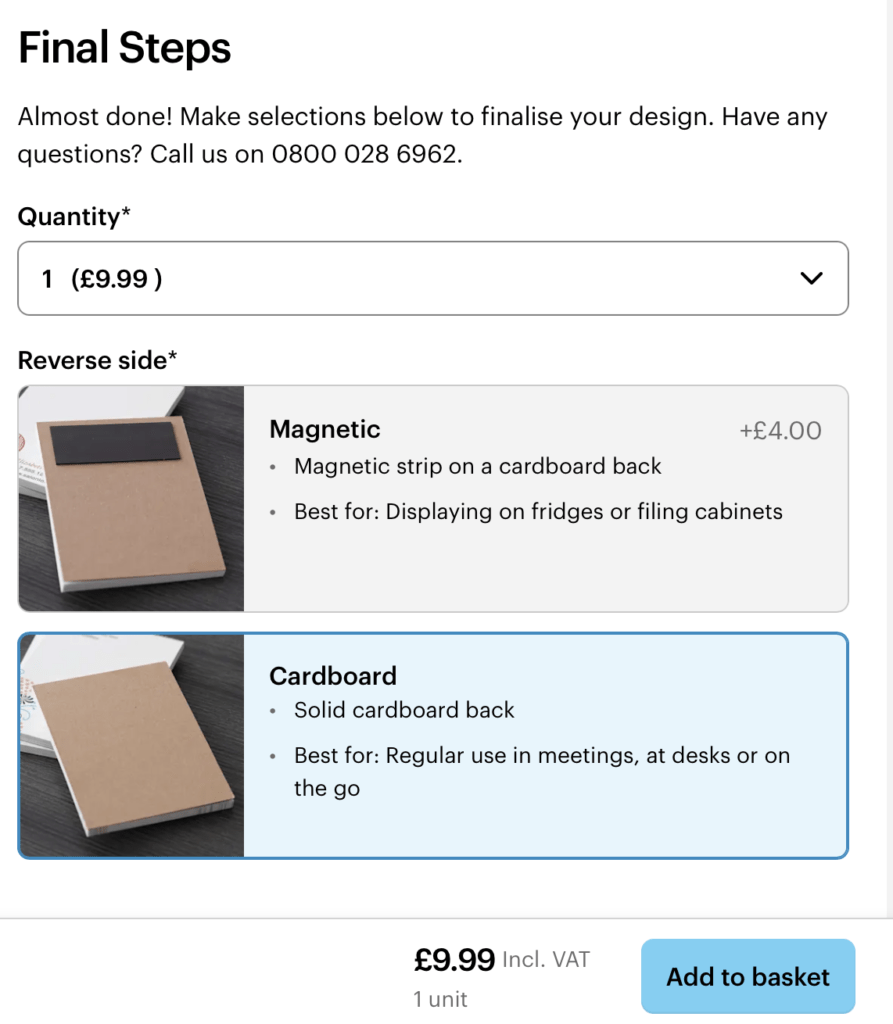
4. Select Magnetic or Cardboard.
5. Click on “Add to basket”.
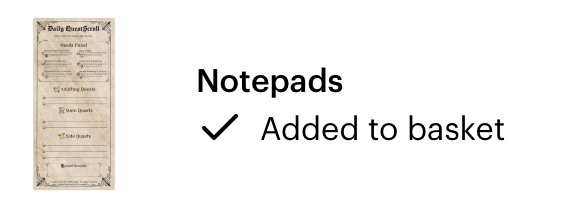
6. Continue to Basket.

Chapter 6 – Order the Daily QuestScroll Prototype Notepad
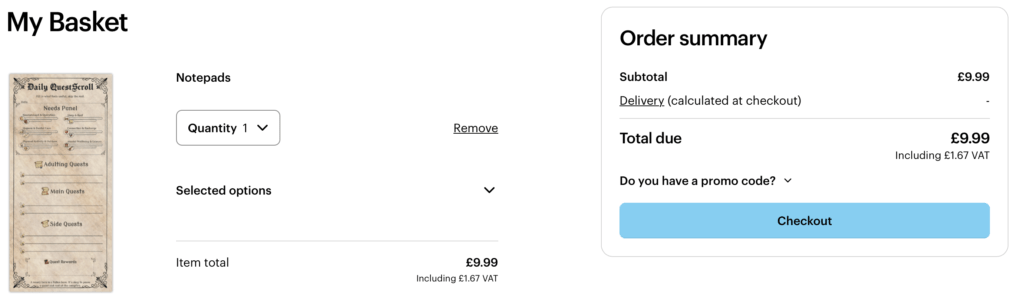
- Go to your Basket.
- Check your Order and click on Checkout.
- Complete the Order
Chapter 7 – A moment of Anticipation
If you made it this far, thanks for sticking around! May your Notepad arrive swiftly and your Quests go smoothly.
Rumour has it that this Prototype is currently sitting on a desk, surrounded by notes and a dream to use it as a blueprint for a Real Life Questbook. Only time will tell whether this dream becomes more than a rumour…
With careful anticipation and a whirlwind of notes,
—
,

Become a Questling
Are you using the Daily QuestScroll Prototype? Share your Quests on the DragoNet by tagging

@ellie.questling
@questling.quest
on Instagram.